OperatorStudio
A downloadable overlay for Windows
# OperatorStudio V25 (Master Camera Architecture) by IceManOfTruth
OperatorStudio is a premium, autonomous, local-only broadcast overlay suite. It runs entirely on the host CPU to avoid GPU/CUDA dependency issues, utilizing MediaPipe for 36-point FaceMesh tracking and Matter.js for 2D rigid body physics.
It features dynamic kinematic physics, cinematic screen-space shaders (chromatic aberration, anamorphic flares), and real-time audio DSP visualizers—all controlled via a headless web dashboard without the overhead of 3D rendering engines.
## ⚠️ LEGAL & MEDICAL DISCLAIMER
**PLEASE READ BEFORE INSTALLING OR RUNNING OPERATOR STUDIO.**
**Medical Warning:** This software features rapidly moving kinetic text blocks, screen dimming (Spotlight), and letterbox animations. While extreme flashing effects have been explicitly excluded from this build for safety, users with photosensitive epilepsy or other visually sensitive conditions should exercise caution when rapidly triggering physics barrages.
**Liability Waiver:** This software is provided "AS IS", without warranty of any kind, express or implied. By downloading, installing, or using Operator Studio, you acknowledge and agree that the developers, contributors, and distributors of this software shall not be held liable for any direct, indirect, incidental, special, or consequential damages. This includes, but is not limited to, hardware damage, stream crashes, audio equipment feedback loops, DMCA claims from user-uploaded assets, or loss of broadcast revenue. **Use at your own risk.**
## Included Files
For the software to run correctly, ensure all of these files remain in the same folder:
* `OperatorStudio.exe` (The core engine)
* `overlay.html` (The OBS visual canvas)
* `dashboard.html` (Your control deck)
* `config.json` (System settings and cooldowns)
* `assets/` (Folder for your transparent .png emotes)
## Setup & OBS Integration
OperatorStudio takes control of your physical webcam to ensure zero-latency tracking. Windows only allows one program to use a webcam at a time.
1. **Release the Camera:** Open OBS and completely deactivate or remove your webcam from your scenes.
2. **Launch the Engine:** Double-click `OperatorStudio.exe`. A 1280x720 tracking window will open. Ensure this window is fully visible on your desktop (not minimized).
3. **Capture the Video:** In OBS, add a **Window Capture** source and select the Operator Tracking Node window. Right-click the source and select **Transform > Fit to screen**.
4. **Add the Physics Canvas:** Add a **Browser Source** in OBS. Check "Local file" and point it to `overlay.html` inside your extracted folder. Set the Width to **1920** and Height to **1080**. Place this layer directly above your Window Capture.
## How to Control Your Stream
1. Open `dashboard.html` in your web browser (you can drag this to a second monitor).
2. The dashboard will connect to the engine automatically.
3. Click the buttons on the dashboard to trigger your physics combos, cinematic lighting, and audio modifications live on stream.
## Adding Custom Emotes
Place your transparent `.png` image files into the newly created `assets/emotes` or `assets/custom_emotes` folders. The engine caches these upon boot, so if you add new images, close and restart `OperatorStudio.exe` to load them.
## Live Broadcast Controls
OperatorStudio runs via a local WebSocket. Do not click the tracking window.
Open dashboard.html in any web browser (Chrome, Edge, Safari).
Ensure the status reads "🟢 Connected to Python Engine."
Ensure the "Operator Tracking Node" window is focused, then use your keyboard, or click on the buttons in dashboard.html to trigger the broadcast states (The keyboard will only work if you click on the operator tracking node window, it's better to use the dashboard.html):
1 : Standard Emote Barrage
2 : Cycle Audio DSP Profiles
3 : Toggle Smooth Spotlight
4 : Toggle Cinematic Mode (Anamorphic Flares + Aberration)
5 : Custom Sub Emote Barrage
6 : Trigger Fail Combo (Camera Shake + Blocks + Tomatoes)
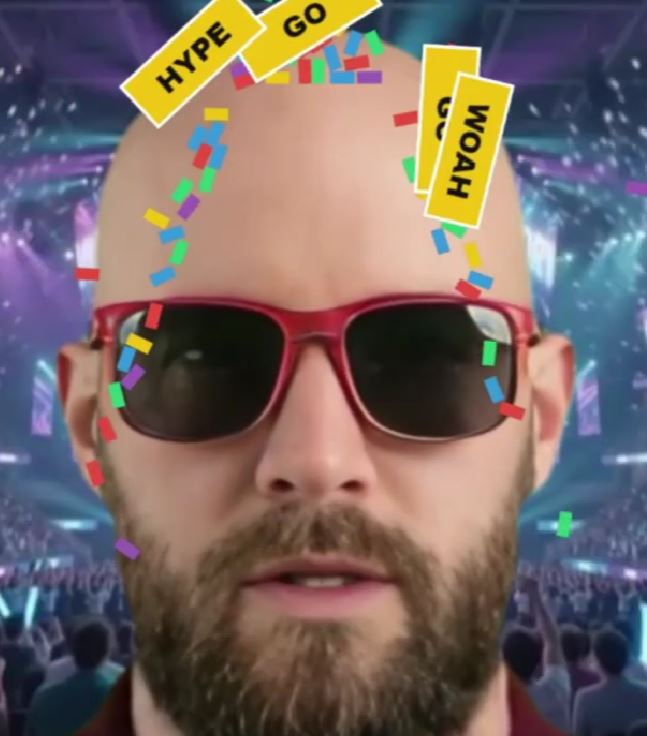
7 : Trigger Hype Combo (Confetti + Gold Blocks)
Alternatively, if chat integration is enabled in config.json, viewers can type !tomatoes or !hype in your connected local chat socket to trigger events autonomously.
Download
Install instructions
Official Release of OperatorStudio. Readme included.
To run:
Unzip folder
Run OperatorStudio.exe
Open overlay.html in your preferred browser
Open dashboard.html in your preferred browser
In OBS, set the window capture to the Browser Source - local file - /overlay.html (Set the Width to 1920 and Height to 1080 and place it on top) and the Window Capture source - Operator Tracking Node (python.exe) below that - (Transform -> Fit to Screen). Then, you should be able to just click on dashboard.html to go through the features.
Source code [https://github.com/icemanoftruth/OperatorStudio]
Leave a comment
Log in with itch.io to leave a comment.